
Customer support
Help with kemo iptv, from setup to the last day of your plan
Most problems are fixed in minutes. Try the quick fixes below first, and if the picture still is not right, message us with your device and a screenshot.
- +212 781 768 546
- support
@kemoiptvhd.com - Support hours
- Message any time
- Typical reply
- In order of arrival
Quick fixes
Six common problems and what to try first
Work through the steps in order. Each one rules out a common cause.
-
If this happens
The picture buffers or freezes
Try this first
- Pause other downloads and video calls on your network.
- Restart the router, wait one minute, then restart the device.
- Use an Ethernet cable, or 5 GHz Wi-Fi close to the router.
- Try a lower-quality version of the channel, if one is listed.
-
If this happens
Login failed or account not found
Try this first
- Re-type the username and password; they are case-sensitive.
- Check the server address includes
http://and the port number. - Remove any space before or after what you pasted.
- Check that your plan has not ended.
-
If this happens
The TV guide is empty
Try this first
- Open the player settings and refresh or update the EPG.
- Wait a few minutes; guide data can arrive after the channels.
- Check the device date, time and time zone are correct.
-
If this happens
A channel is missing or black
Try this first
- Try another channel to see if the problem is general.
- Reload or update the playlist in the app settings.
- If one channel stays down, message us its name and group.
-
If this happens
The app crashes or will not open
Try this first
- Force-close the app and open it again.
- Clear the app cache (Android and Fire TV) or reinstall it.
- Free up storage: devices with little space struggle with large channel lists.
- Update the app and the device software.
-
If this happens
Sound is out of sync or missing
Try this first
- Switch to another channel and back.
- Look for the audio track option in the player while it plays.
- Turn off surround or passthrough audio on the device to test.
Your home network
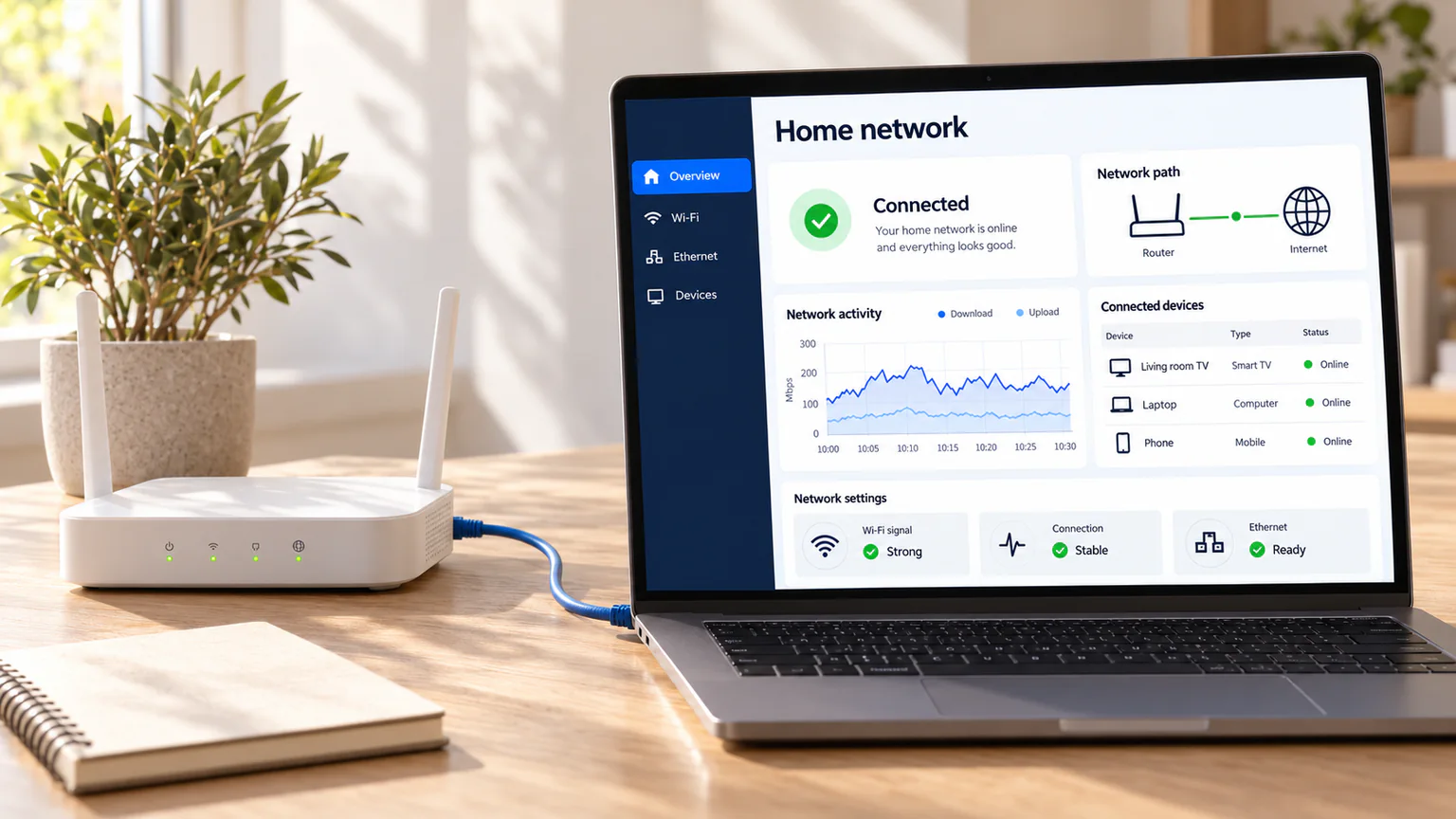
Most buffering starts at the router
Live streams need a steady connection more than a fast one. A speed test can look great while Wi-Fi drops packets in the next room. These changes make the biggest difference, roughly in order of impact:
- Use a cable for the TV or streaming box whenever you can.
- Choose 5 GHz Wi-Fi over 2.4 GHz, and keep the router in the open, not in a cabinet.
- Restart the router once a week; many home routers slow down over time.
- Check your plan speed at the time you watch; aim for 15 Mbps or more per HD stream.
- Watch out for data caps: HD uses roughly 3 GB an hour.
How a request is handled
What happens after you message us
-
Step 1
We read your message in order
Include your device, app and a screenshot, and we can usually skip the first round of questions.
-
Step 2
We check your account first
Plan status and login details, so we know whether the problem is on our side or at home.
-
Step 3
We guide you step by step
One instruction at a time, so you are never left with a wall of text to decode.
Contact
Still stuck? Reach us directly
-
WhatsApp
+212 781 768 546
Best for orders, setup steps and quick questions. Screenshots and short videos help.
Open WhatsApp chat -
Email
support@kemoiptvhd.com
Best for billing, refunds and anything you want in writing. Add your order name so we can find it.
Write an email -
Help yourself, any time
Guides and quick fixes
Most setup questions are answered in the installation guide and the quick fixes list.
Open the setup guide
Support questions
Yes, for the whole length of your plan, whether it is one month or twelve.
We do not take control of your devices. Instead we guide you through each step in the chat, which also means you will know how to fix things later.
A short phone video of the screen while the problem happens, plus your device and app name. It shows us in seconds what a long description cannot.
Yes, as long as it can run a compatible player app. We do not sell devices, so our advice is independent.