
Installation guide
How to install kemo iptv on any device
The same four steps work everywhere: install a player app, add your login, load the channels and set your favorites. Below you will find the exact path for Smart TVs, Fire TV, Android, Apple devices and computers.
The short version
Four steps on every device
-
Install the player
From your device's official app store. We tell you which player suits your model.
-
Add your login
Username, password and server, a playlist link, or a device code: whatever your app asks for.
-
Let it load
Channels first, then the TV guide. Give the first load a couple of minutes.
-
Make it yours
Favorite your top channels and hide the groups you never watch.
Before you start
Have these ready and the whole setup takes one sitting:
- Your login details from our message or email.
- Your device switched on and connected to the internet, ideally by cable or 5 GHz Wi-Fi.
- Your app store account (Google, Amazon, Samsung, LG or Apple) signed in on the device.
- Optional but handy: your phone, to copy long details or use as a keyboard.
Samsung, LG and Android-based Smart TVs
Samsung
- Press Home on the remote and open Apps.
- Use the search icon to find the player app we recommended, then install it.
- Open the app. If it shows a code or MAC address, send it to us; otherwise enter your login details.
- Wait for the channels and guide to load, then add your favorites.
LG
- Press Home and open the LG Content Store.
- Search for the recommended player and install it.
- Open it and enter your login, or send us the device code it displays.
Android TV and Google TV (Sony, TCL, Hisense, Philips and others)
- Open Apps, then Google Play.
- Search, install and open the player.
- Choose the login type that matches what we sent, and enter the details.
More detail, including picture settings for sport, is on the Smart TV page.
Fire TV Stick and Fire TV Cube
- From the Fire TV home screen, open Find, then Search.
- Type the name of the recommended player and select Get or Download.
- Open the app and enter your login details. The Fire TV mobile app can act as a keyboard.
- Let the channels load, then press and hold Home to reach settings quickly in future.
Use apps from the Amazon Appstore whenever possible. If the player you want is not listed there, ask us first rather than installing apps from unknown websites.
Storage tips and Fire TV-specific fixes are on the Fire TV Stick page.
Android boxes, phones and tablets
- Open Google Play and search for the recommended player.
- Install and open it, then choose the login type that matches our message.
- Enter or paste your details. On a phone, copying straight from WhatsApp avoids typos.
- On phones and tablets, switch to Wi-Fi before watching to protect your mobile data.
See the Android page for box recommendations and cache clearing.
Apple TV, iPhone and iPad
- Open the App Store and search for the recommended player.
- Select Get, then open the app.
- Enter your login. On Apple TV, the keyboard on your iPhone pops up automatically to help you type.
- Watching on an iPhone? AirPlay can send it to a TV, but a player installed on Apple TV is smoother.
Read the Apple TV page for AirPlay and picture settings.
Windows PC and Mac
- Install a desktop IPTV player, or a media player that opens playlist links.
- Add your playlist link or login details.
- Use full-screen mode, and connect an HDMI cable if you want to watch on a TV.
After setup: make it feel like home
- Favorites: Long-press a channel to add it. A list of ten favorites beats scrolling through hundreds of channels.
- Hide groups: Most players let you hide categories you never watch.
- Parental controls: Lock adult or late-night groups with a PIN in the player settings.
- Updates: Refresh the playlist and guide once a week so line-up changes appear.
Network
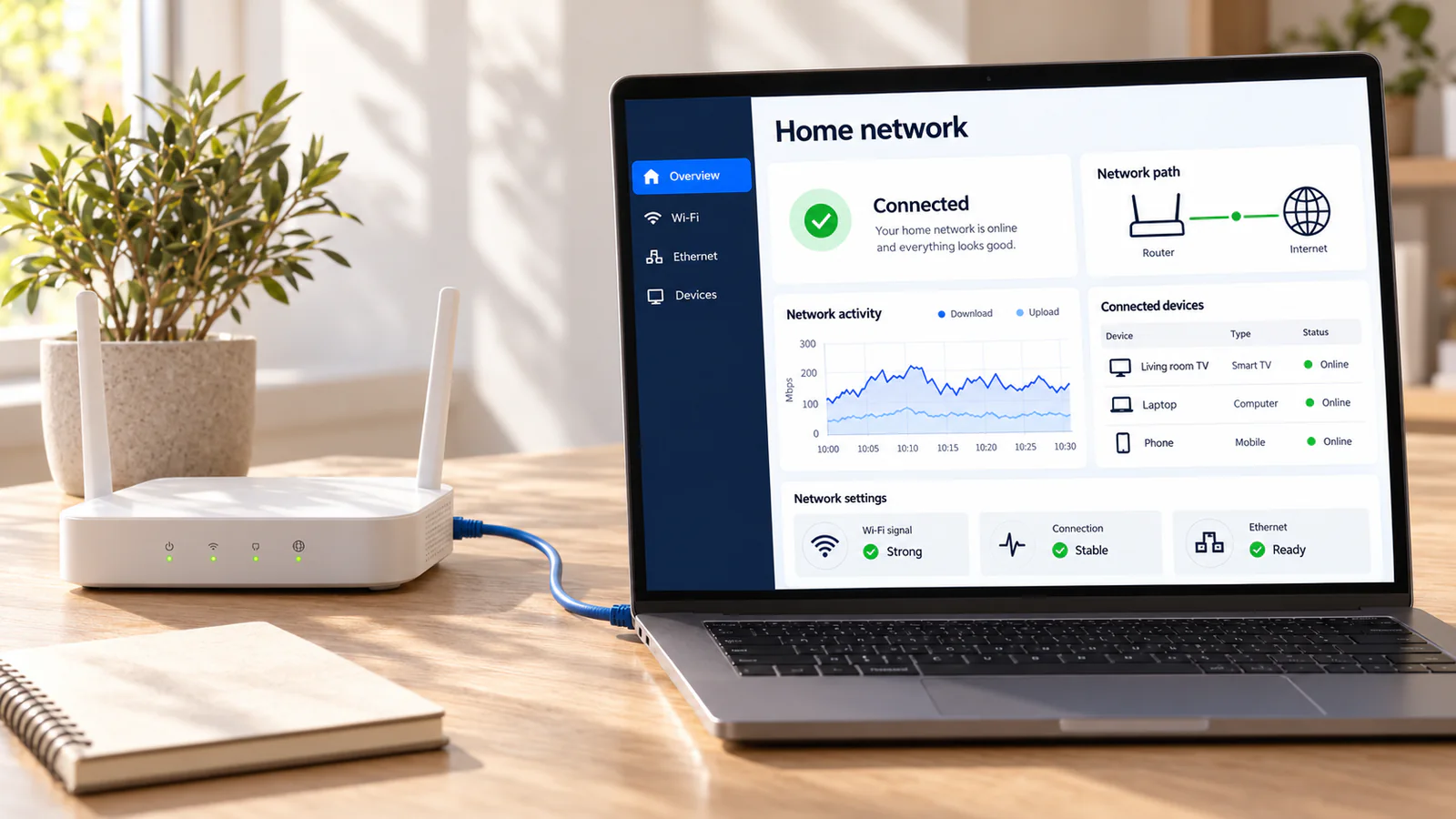
Set up your connection for live TV
A smooth picture depends on a steady connection between the router and the screen. Two minutes here prevents most buffering later.
- Plug the TV or streaming device into the router with an Ethernet cable if you can.
- Otherwise, connect to the 5 GHz network and keep the router within a room or two.
- Run a speed test on the TV itself in the evening: 15 Mbps or more per HD stream is a good target.
- Avoid VPN or proxy apps on the streaming device unless you know you need them; they often slow streams down.
If setup does not go to plan
Three setup snags and their fixes
-
If this happens
I cannot find the app in my store
Try this first
App availability differs by model and country. Send us your device model and we will suggest an alternative from your store.
-
If this happens
The app rejects my login
Try this first
Check capitals, spaces and the full server address. The activation page lists the usual culprits.
-
If this happens
Channels load but the guide is empty
Try this first
Refresh the EPG in the player settings and check the device date and time zone. Guide data can take a few minutes on the first load.
Installation questions
It depends on your device and its app store, and the options change over time. Tell us your model and we will recommend a current, compatible player from the official store.
Some players are free, some offer optional paid upgrades from their developers. Those payments go to the app developer, not to kemo iptv, so check the app's own terms.
We guide you through every step in the chat. We do not take remote control of devices, which keeps your accounts private.
Usually ten to fifteen minutes, most of it waiting for the app to install and the channels to load.
Prefer a person to walk you through it?
Send us your device and where you got stuck. We reply with the next step, one at a time.