
Smart TV
kemo iptv on your Smart TV, without an extra box
Most Samsung, LG and Android-based TVs from recent years can install a compatible player app straight from their own app store. Here is how, brand by brand, plus the settings that make live TV and sport look their best.
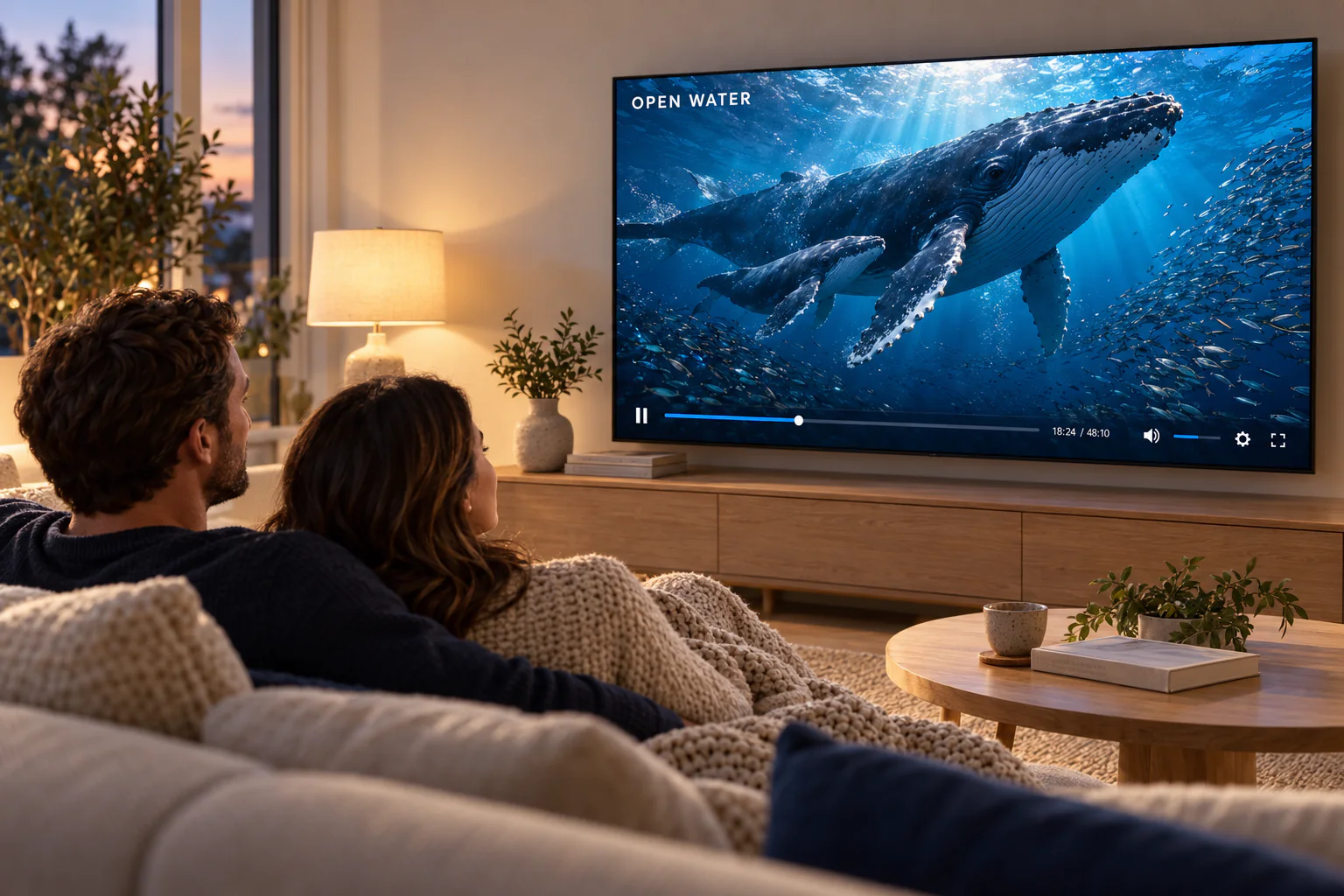
Brand by brand
What to expect from your TV
-
Samsung (Tizen)
Players install from the Samsung app store. The choice varies by model year and country, so send us your model if one is missing.
-
LG (webOS)
Players install from the LG Content Store. Some apps show a device code that we link to your plan for you.
-
Android TV and Google TV
Sony, TCL, Hisense, Philips and others. Google Play has the widest choice of players of any TV platform.
-
Other TVs
Roku TVs, Vizio SmartCast and older sets offer few or no compatible apps. A streaming stick in a spare HDMI port is the easy fix.
Setup
Install on a Smart TV in four steps
The menus differ slightly by brand, but the route is the same.
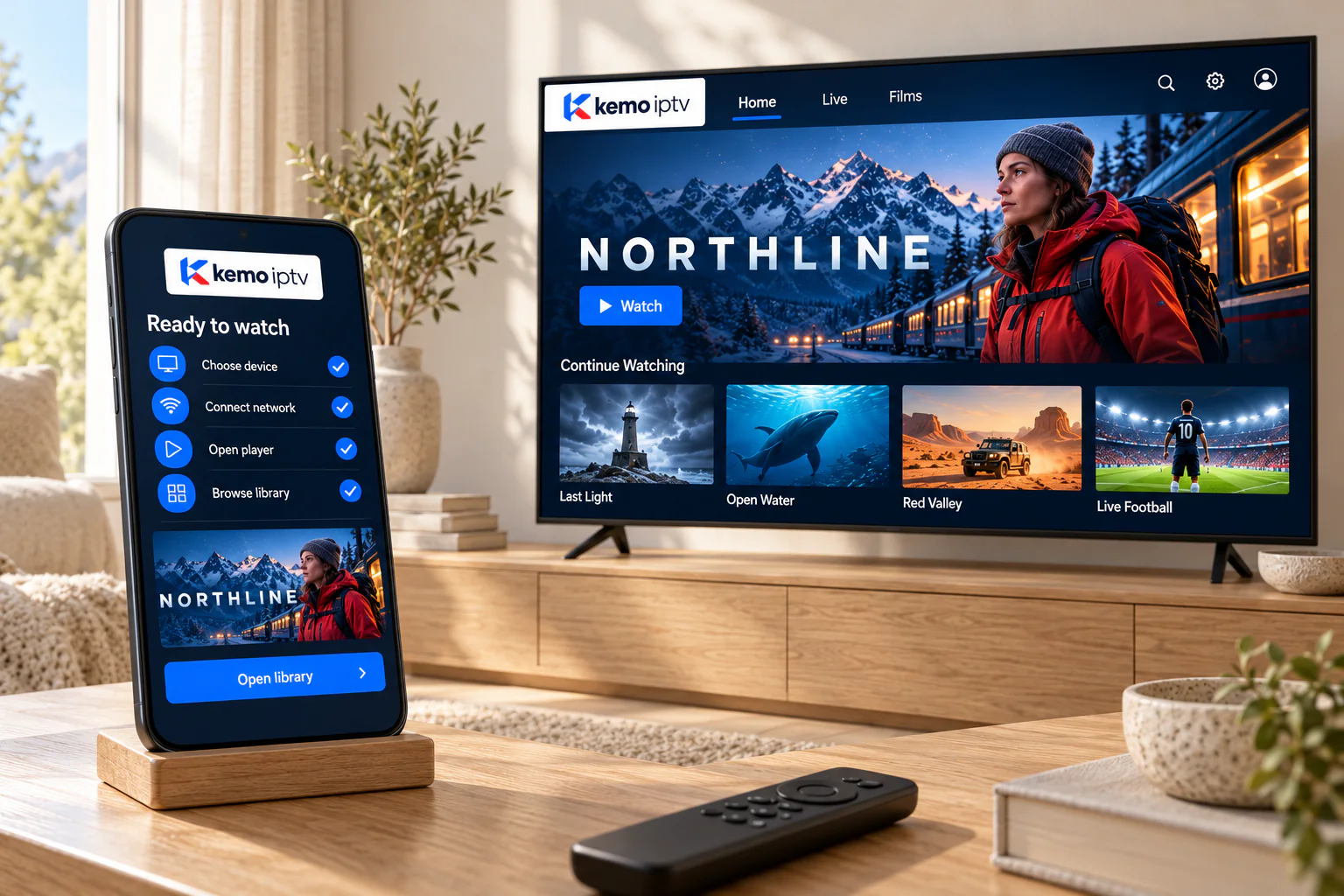
-
Open the TV app store
Press Home, then Apps (Samsung), LG Content Store (LG) or Google Play (Android TV).
-
Install the player
Search for the player we recommended for your model and install it.
-
Sign in
Enter your login, or send us the code the app shows on screen.
-
Set your favorites
Once channels load, add the ones you watch most to favorites.
Picture and sound
TV settings worth two minutes
Factory settings are tuned for the showroom, not your living room.
-
Use the Ethernet port
Most Smart TVs have one. A cable to the router is the single best fix for buffering.
-
Turn motion smoothing down for films
Settings with names like Auto Motion Plus or TruMotion make films look like soap operas. Keep them low for films, higher for sport if you like.
-
Choose a natural picture mode
Standard, Movie or Filmmaker modes are closer to how programmes were made than Vivid or Dynamic.
-
Switch off aggressive energy saving
Eco modes can dim the picture and slow apps down while streaming.
-
Keep the TV software up to date
Updates fix app crashes and improve streaming. Turn on automatic updates in the TV settings.
Smart TV fixes
When a Smart TV misbehaves
-
If this happens
The player is not in my TV store
Try this first
Older models or certain regions have fewer apps. Send us your model number; if nothing suitable exists, a streaming stick is the reliable route.
-
If this happens
Menus are slow on an older TV
Try this first
Large channel lists can stretch older TV processors. Hiding unused groups helps; a modern stick helps more.
-
If this happens
No sound through the soundbar
Try this first
Set the TV audio output to PCM or Auto rather than passthrough, then try the channel again.
Smart TV questions
It is on a label on the back of the TV, and usually in Settings under Support or About. A photo of either is all we need.
On recent TVs, yes. On older or budget models, a current streaming stick is often faster and gets app updates for longer.
Yes. How many devices can play at the same time depends on your plan, so ask us if you need more than one at once.
No. You only install an app from the TV's official store, exactly like any other app.
Send us your TV model
We will confirm it works and tell you which player to install, before you pay anything.